



Why buy from ccktech
Storage specialists
Helpful guidance across portable, desktop, NAS and backup storage.
Expert pre-sales advice
Get help with compatibility, performance and choosing the right setup.
Fast UK delivery
Quick dispatch on in-stock items with clear delivery messaging.
Trusted UK supplier
Supporting creative teams, professionals and business customers across the UK.
G-DRIVE
G-DRIVE
Professional-grade storage for your creative content and workflows






Ask the Web Team
Need help choosing the right capacity or storage solution? Our web team can help with product advice, compatibility, and workflow guidance.


Friendly advice from our UK team
Overview
Unleash your creative potential with the G-DRIVE hard drive, an ultra-reliable storage solution built for creators and professionals. This ultra-reliable, high-capacity USB-C™ drive houses an enterprise-class Ultrastar drive, delivering the space and performance you need for your growing library of 4K/8K videos, high-resolution photos, audio projects and more. With a sleek, all-aluminum design that complements your high-end setup, the G-DRIVE provides a reliable hub for your creative assets. Focus on your creative flow, knowing your valuable content is stored securely and accessibly.
High-Capacity and Fast Backups
Back up and access more of your HD photos, videos, and other high-value content. With high-speed data transfers up to 280MB/s read and 280MB/s write (22TB and 24TB capacities) using the USB-C™ (10Gbps) port, you’ll be able to focus on what’s important.
7200RPM Ultrastar Enterprise-Class Hard Drive Inside
For your demanding workloads and high-value content, you can rely on the power and enhanced reliability of the 7200RPM Ultrastar enterprise-class hard drive inside.
Premium, Industrial Enclosure
With a stackable, anodized aluminum enclosure, the G-DRIVE desktop hard drive pairs beautifully with your high-end computer and gives you durable strength you can feel.
Customize Your Workstation
Created for workstation customization, the G-DRIVE features two anchor points on each side so you can attach to a DIT cart, mounting plate, or other gear to support your production needs.
3-Year Limited Warranty
Backed by a 3-year limited warranty, you can be confident in the reliable storage of the G-DRIVE for years to come.
Key Features
- USB-C (10Gbps) drive for fast backup
- Stackable, anodized aluminum enclosure offers premium durability
- High-capacity, enterprise-class Ultrastar 7200RPM drive inside
What’s In The Box
- G-DRIVE Desktop Hard Drive
- USB-C™ to USB-C™ Cable
- Quick Start Guide
- Power Cable
- AC Power Adapter
Frequently Asked Questions
How do I connect the G-DRIVE to my computer?
Connect the drive to your computer using the supplied USB-C cable. Then plug in the power cable to a surge protector or wall outlet and press the power button. On macOS, the drive will automatically mount on the desktop once connected.
What performance speeds does the G-DRIVE support?
The G-DRIVE delivers transfer speeds of up to 280MB/s read and 280MB/s write (on 22TB and 24TB models) when connected via its USB-C (10Gbps) port.
Which operating systems are compatible with the G-DRIVE?
The G-DRIVE is pre-formatted in APFS and is compatible with macOS 11+. It can also be used with Windows 10+ after reformatting.
Can I use the G-DRIVE with Apple Time Machine?
Yes. The G-DRIVE is Mac-ready and compatible with Apple Time Machine. After connecting it to macOS, you can choose to use it as a backup disk when prompted, or set it up later through Time Machine settings in System Preferences.
If you prefer not to enable Time Machine immediately, you can also select “Don’t Use” or configure it manually at any time after setup.
How should I safely disconnect the G-DRIVE?
You should always eject the G-DRIVE before unplugging it to prevent data loss or corruption.
On macOS, you can safely eject the drive using Finder by clicking the eject icon next to the drive under Locations/Favourites, or by right-clicking the drive and selecting “Eject”. Once the drive disappears from Finder or the desktop, it is safe to disconnect.
On Windows, use the “Safely Remove Hardware and Eject Media” icon in the system tray to ensure all data has been fully written before removing the drive.
Can I reformat the G-DRIVE for other uses?
Yes. The G-DRIVE can be reformatted for use with either macOS or Windows, depending on your needs. On macOS, you can reformat the drive using Disk Utility, and on Windows you can use the built-in system formatting tools. Note that reformatting will erase all data on the drive.
| Capacity | |
|---|---|
| Compatibility | |
| Connectivity | |
| Data Transfer Rate | |
| Dimensions | |
| Drive Type | |
| Power | |
| Warranty | |
| Weight |
Only logged in customers who have purchased this product may leave a review.
Downloads
Related products
-

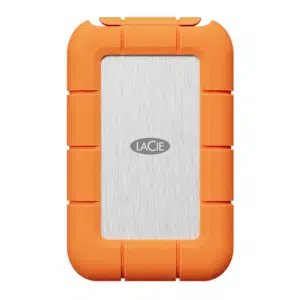
LaCie
LaCie Rugged SSD4
Shop Now This product has multiple variants. The options may be chosen on the product page -
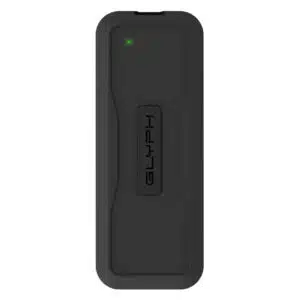
Glyph
Glyph Atom EV Portable NVMe SSD
Shop Now This product has multiple variants. The options may be chosen on the product page -
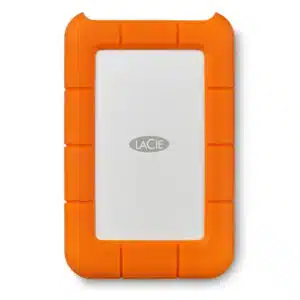
LaCie
LaCie Rugged USB-C Portable Hard Drive
Shop Now This product has multiple variants. The options may be chosen on the product page -
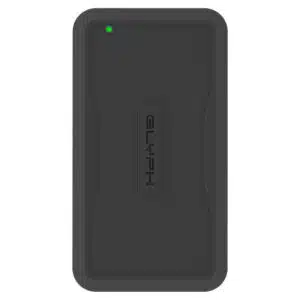
Glyph
Glyph Atom PRO Thunderbolt 3 NVMe SSD
Shop Now This product has multiple variants. The options may be chosen on the product page
Reviews
There are no reviews yet.